Graphite – Creative Agency & Portfolio WordPress Theme
A monochrome block theme for web design studios, agencies and freelancers, made for the WordPress Site Editor.
Thank you for purchasing Graphite. This guide takes you from the zip file to a finished site: installing the theme and its companion plugin, importing the demo, and changing every text, picture, menu, colour and block.
- A block theme: header, menus, footer, blog, archives, search, single posts and the 404 page are templates of core blocks, editable in Appearance → Editor.
- A dark default and a light scheme that visitors switch in the header; their choice stays in their browser.
- The companion plugin Graphite Core adds 67 blocks (the sections of every demo page, the shop, the blog widgets, 404 and coming soon), an Inbox for what visitors send, and the one-click demo.
- Three home pages, About, Services, Portfolio, Pricing, FAQ, Testimonials, Contact, Shop, Blog, 404 and Coming soon.
- Responsive from 320 px phones to 2560 px screens, keyboard friendly, respects “reduced motion”, translation ready. Everything that moves on its own (shutters, question walls, the board, the drum, the process charts) has a Pause button and holds still while the keyboard is in it. A floating button takes visitors back to the top. On a phone, charts wider than the screen say so, and the process timeline scrolls itself along with its playhead.
Requirements
- WordPress 7.0 or newer (tested up to 7.1).
- PHP 7.4 or newer (8.2 or 8.3 recommended).
- Pretty permalinks (Settings → Permalinks → “Post name”).
- Graphite Core is bundled with the theme. WooCommerce (free, from WordPress.org) runs the shop: products, cart, checkout and payments. The theme suggests both; without WooCommerce the rest of the site works and the shop blocks stay hidden.
What is in the download
Theme/graphite.zip— the theme. It carries the plugin inside, so WordPress can install it for you.Plugin/graphite-core.zip— the companion plugin on its own, if you prefer to upload it yourself.Documentation/— this guide.Licensing/— the GPL text and the licences of the bundled fonts and libraries.
Installation
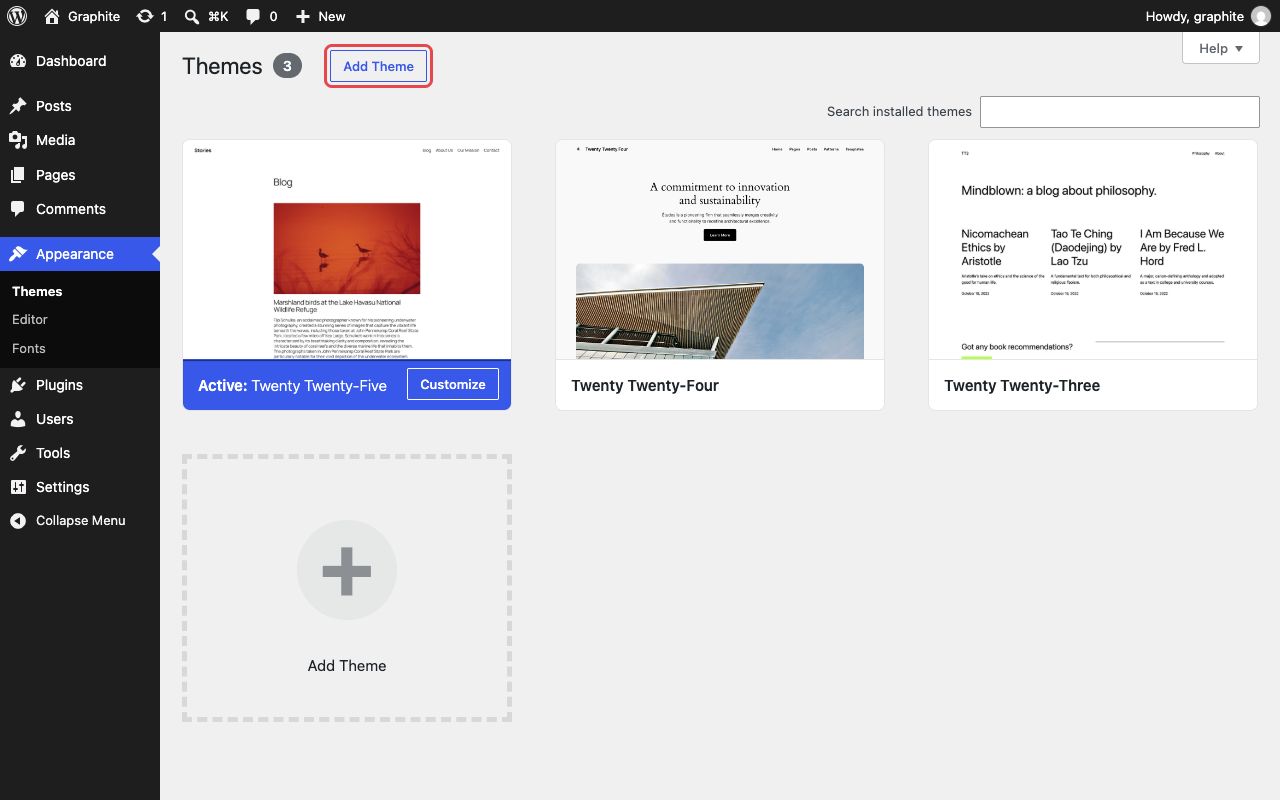
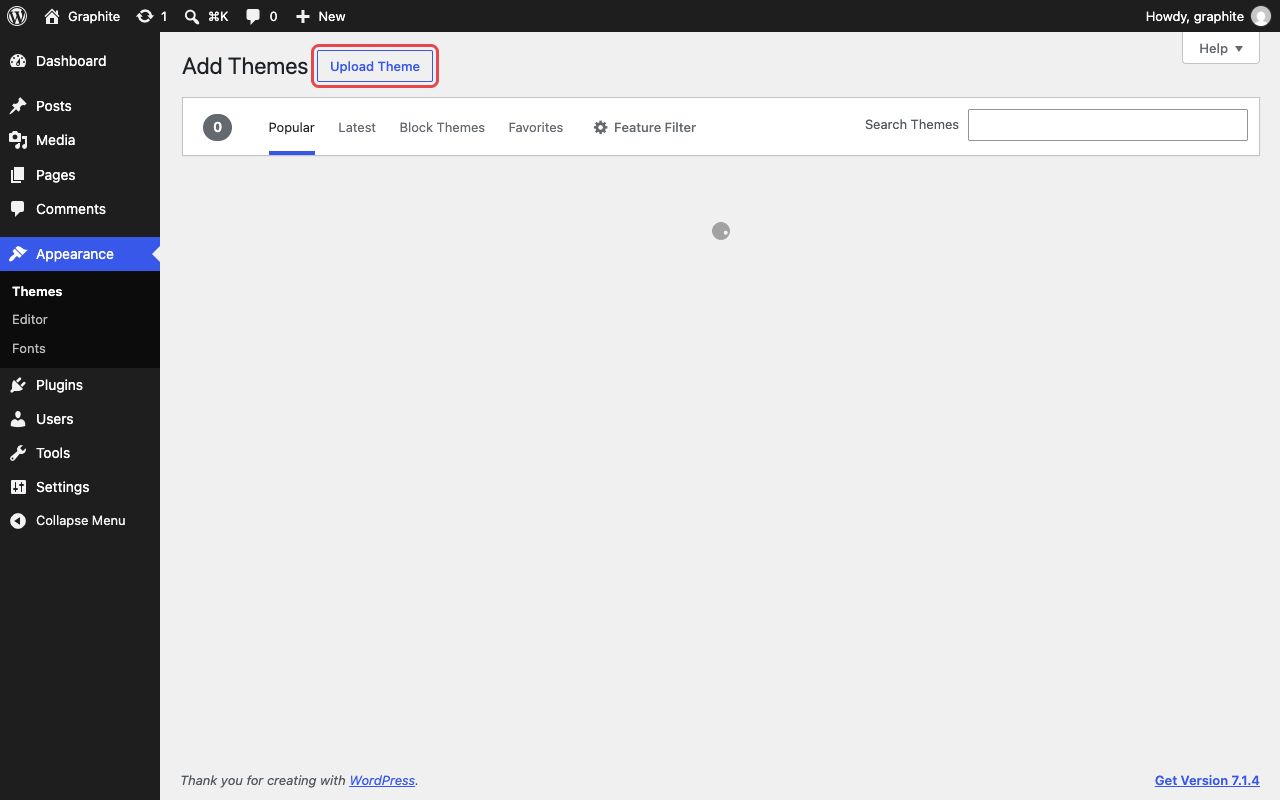
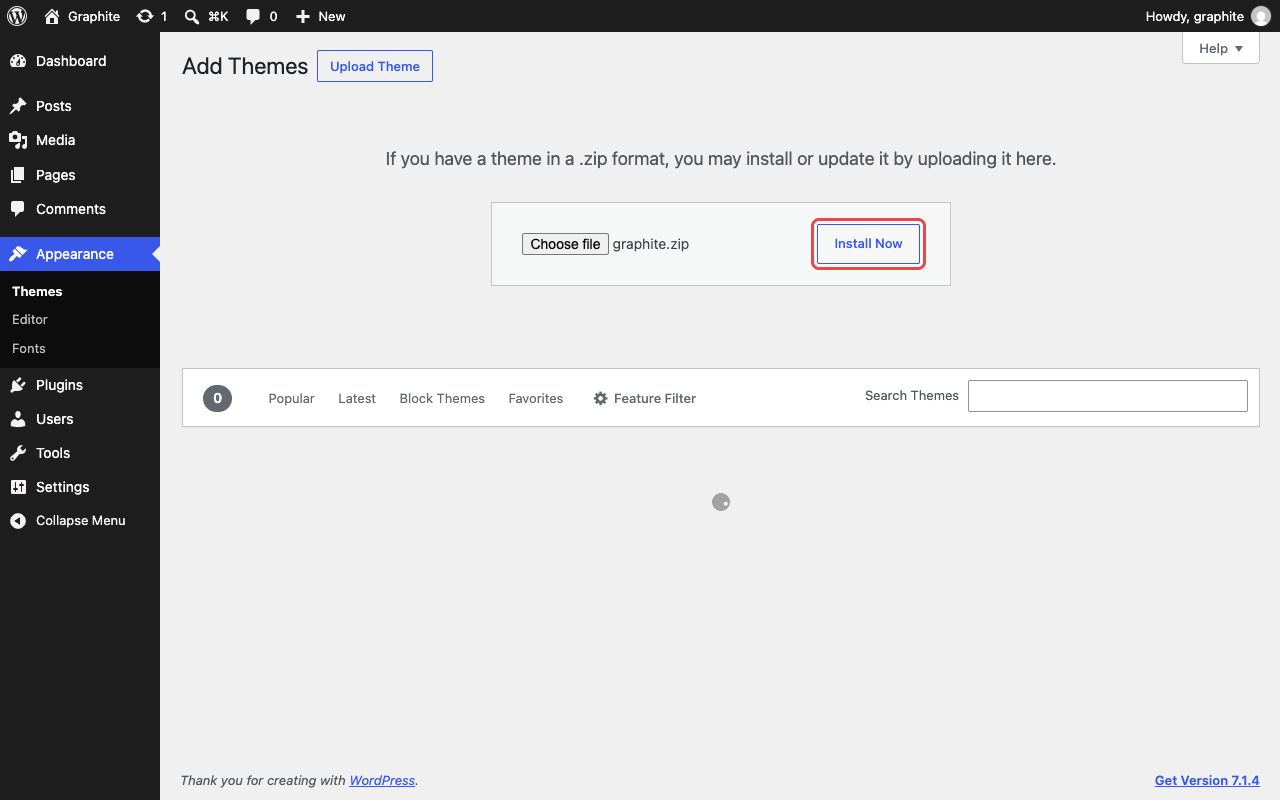
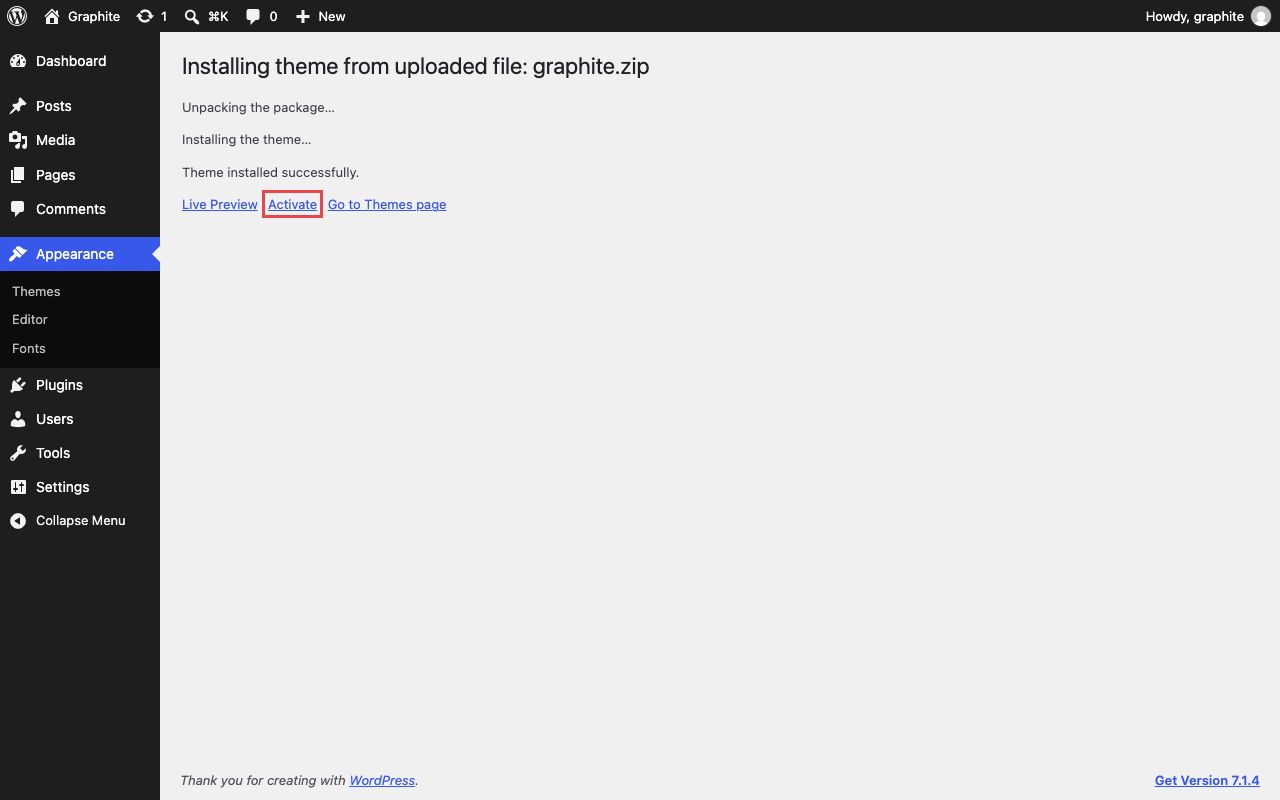
Follow the steps in order; the whole installation takes a few minutes. The red frames in the pictures show where to click.
Step 1. Download and unzip the package
On ThemeForest open Downloads, press Download next to Graphite and choose All files & documentation. Unzip the file on your computer. You will find the folders listed under What is in the download.
Theme/graphite.zip, not the big zip you downloaded. Uploading the big one stops with “The package could not be installed. The theme is missing the style.css stylesheet.”Step 2. Open the theme upload screen
In your WordPress dashboard go to Appearance → Themes and press Add Theme.
Then press Upload Theme at the top of the screen.
Step 3. Upload and activate the theme
Press Choose file, select Theme/graphite.zip and press Install Now.
When WordPress says the theme is installed, press Activate.
Step 4. Install the plugins
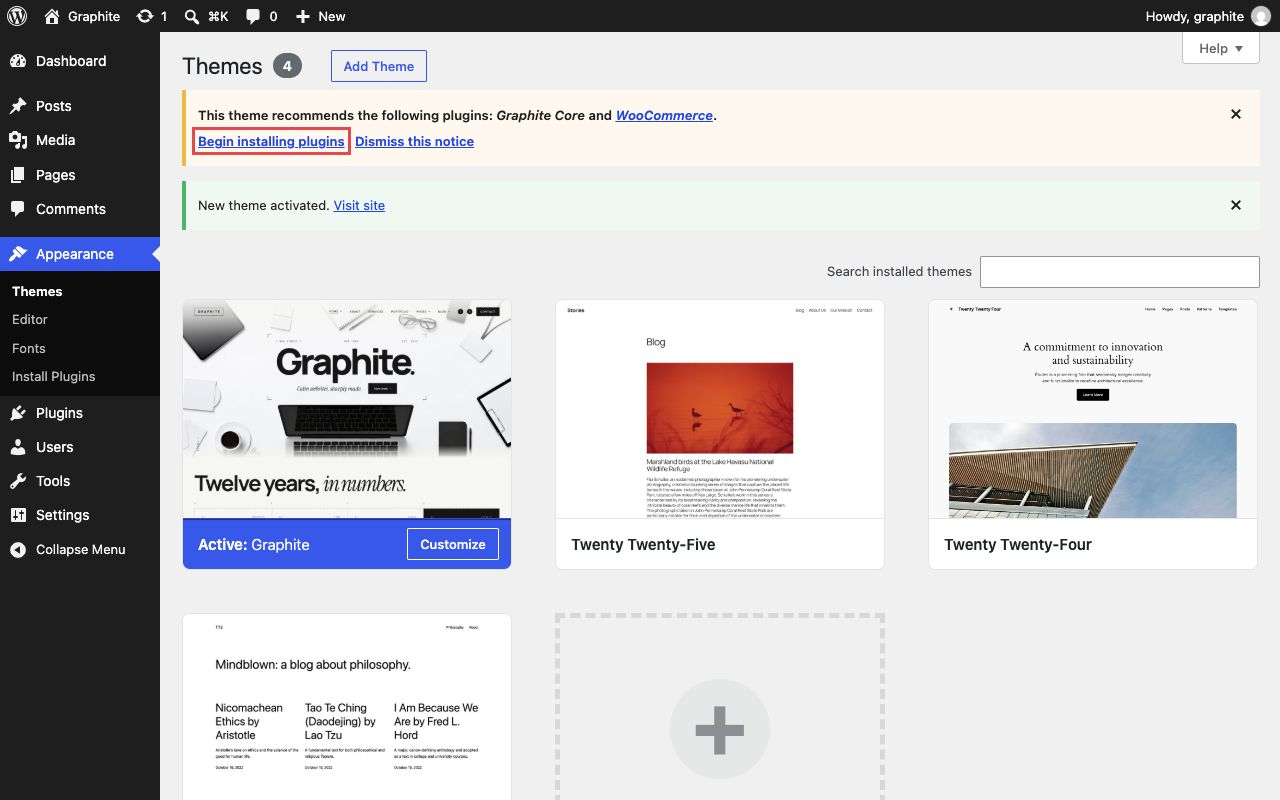
A notice at the top of the screen recommends the plugins Graphite works with. Press Begin installing plugins. You can also reach this screen at any time under Appearance → Install Plugins.
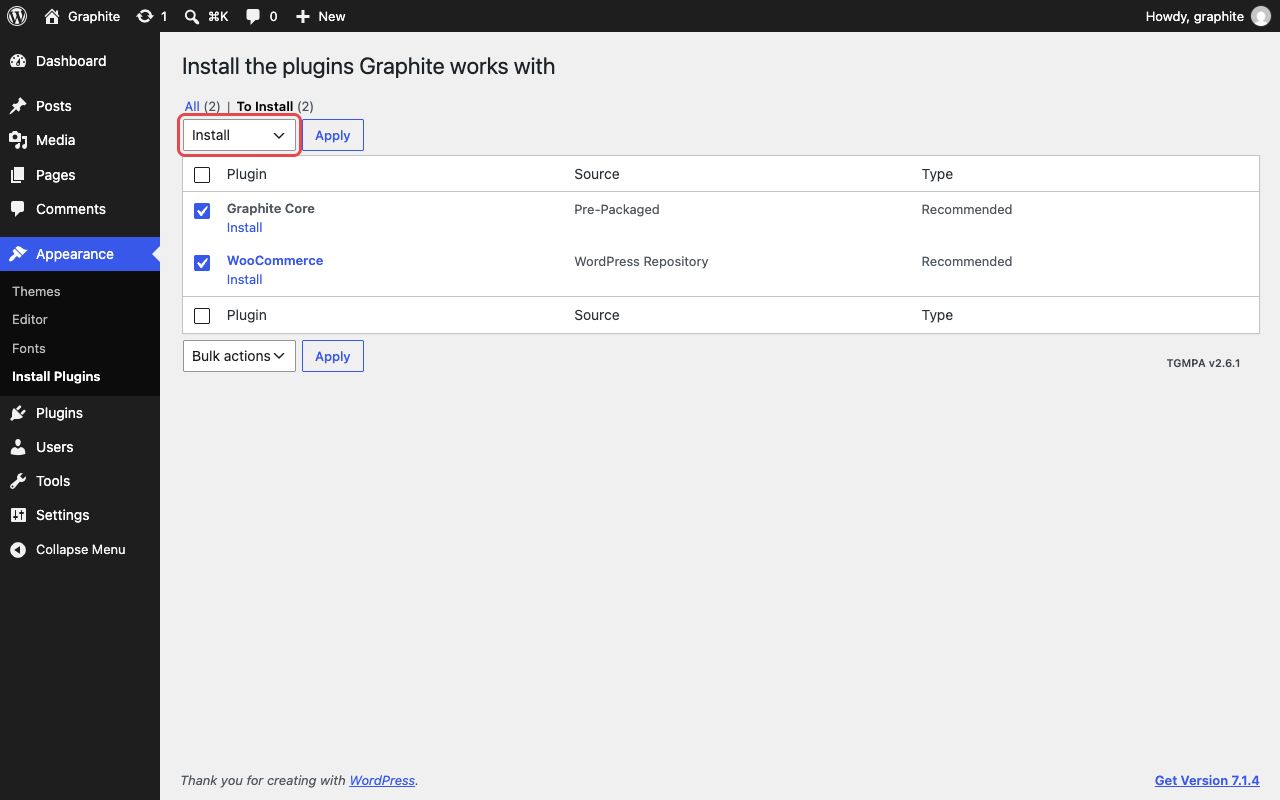
Tick Graphite Core and WooCommerce, choose Install in the Bulk actions list and press Apply. WooCommerce is optional: without it the site works and the shop blocks stay hidden.
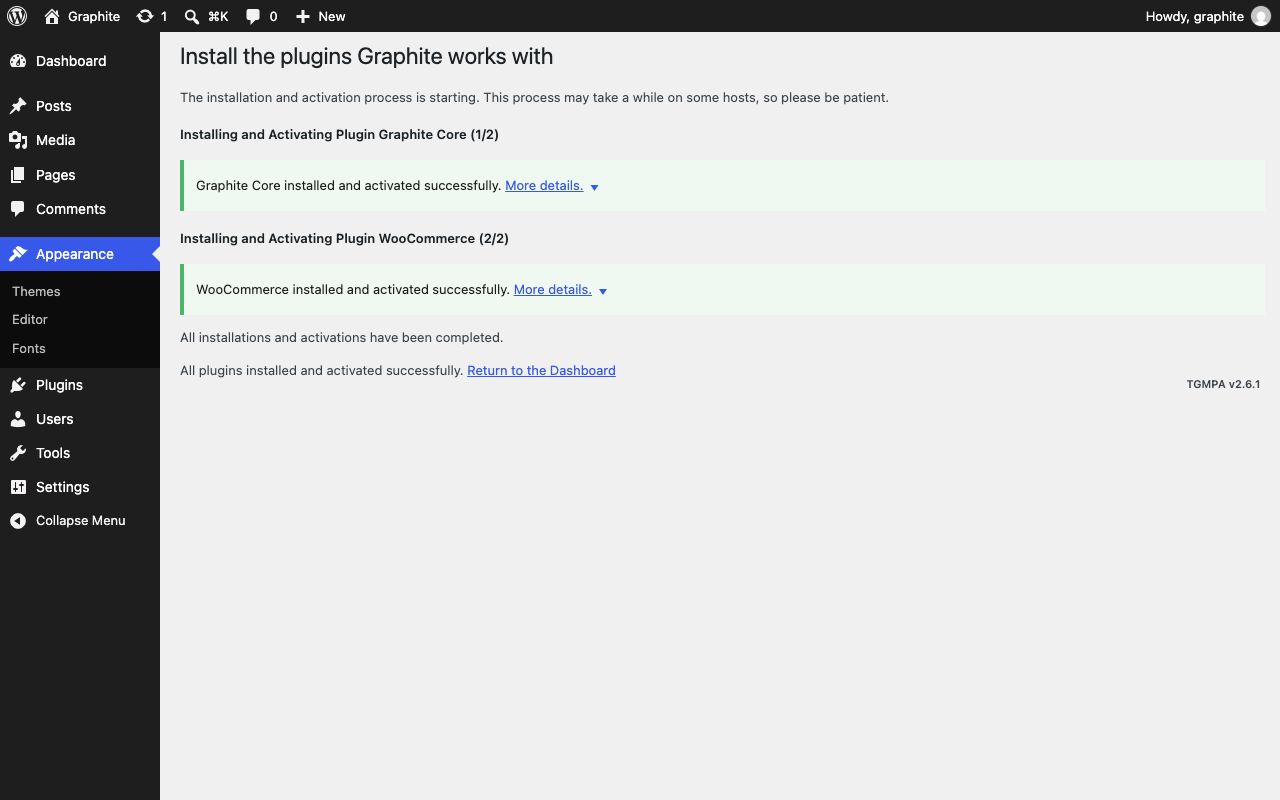
Wait until the screen says that all installations have been completed. The plugins are then active.
Plugin/graphite-core.zip under Plugins → Add Plugin → Upload Plugin instead, and install WooCommerce from Plugins → Add Plugin.Step 5. Import the demo
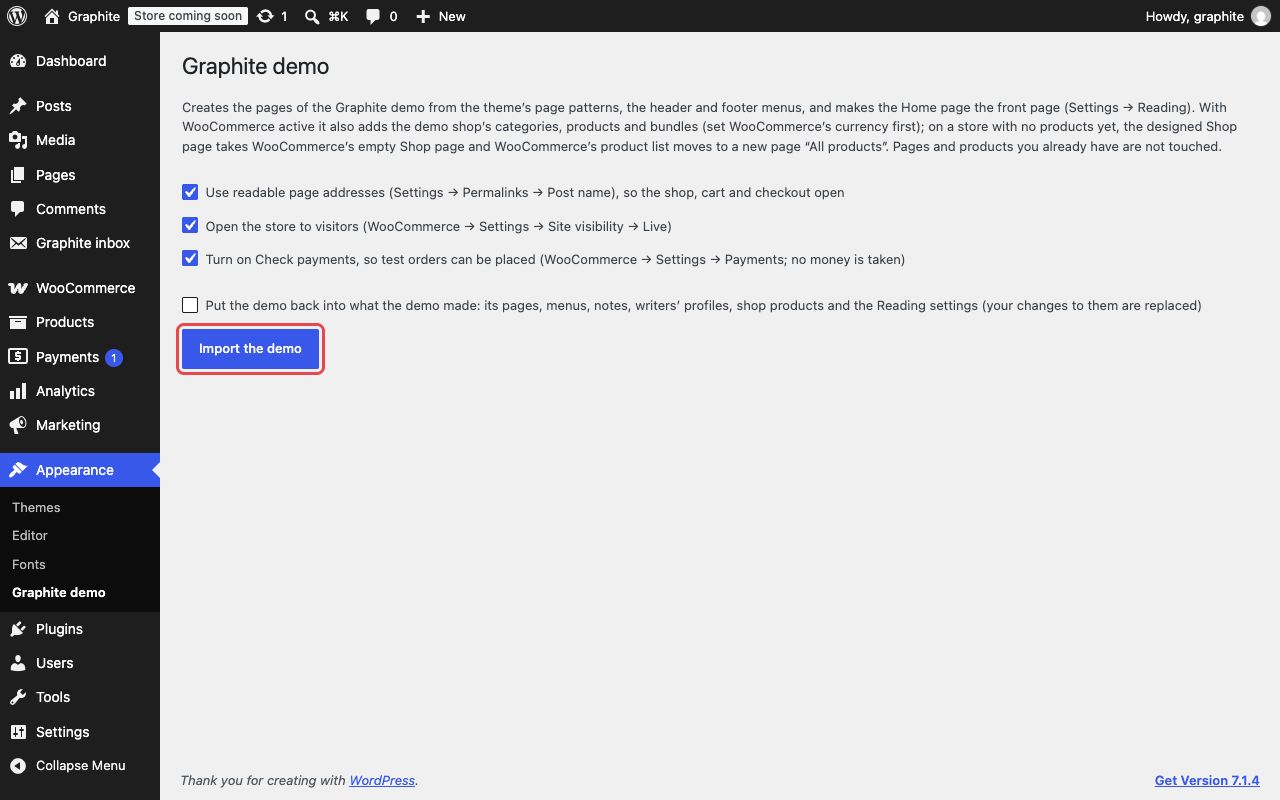
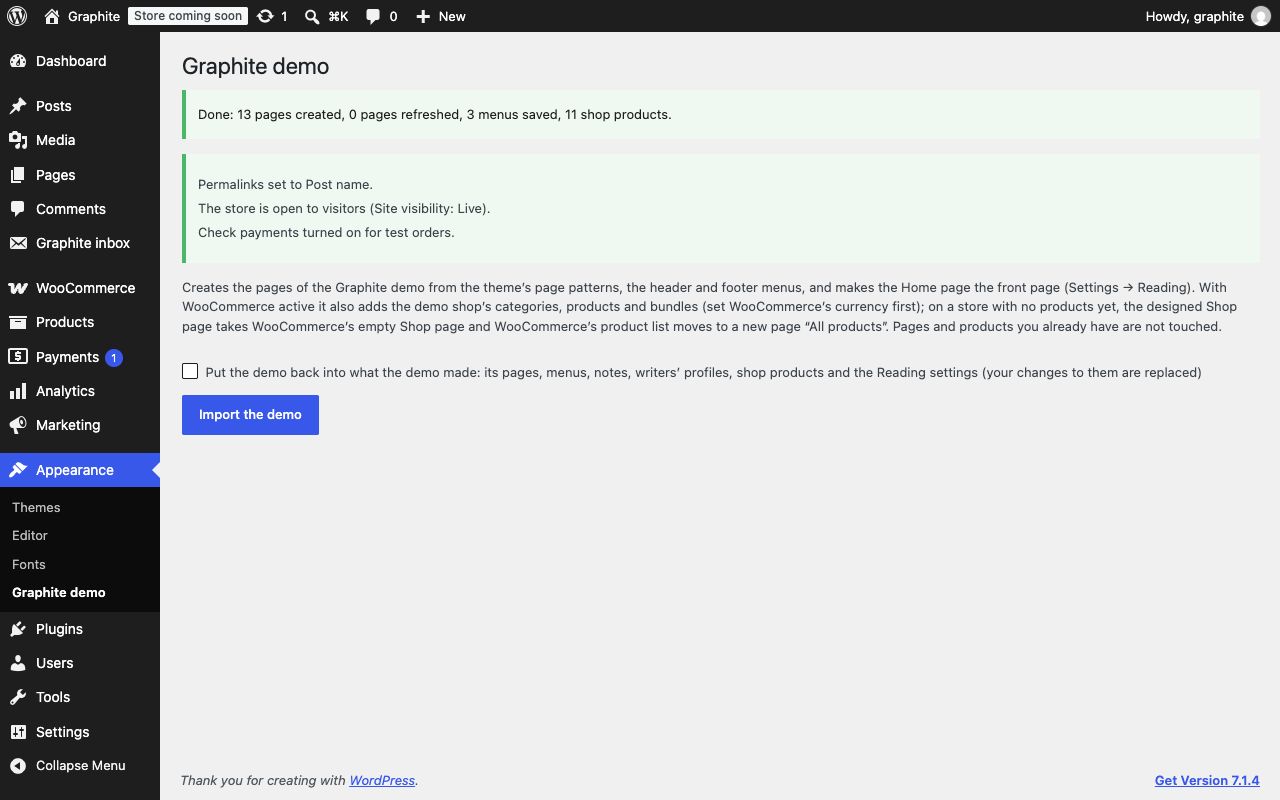
Go to Appearance → Graphite demo. Leave the boxes ticked and press Import the demo. To use your own currency in the demo shop, first set it under WooCommerce → Settings → General. This step is optional: skip it to start from empty pages. Demo content lists everything it creates.
The screen reports what was done.
Step 6. Visit your site
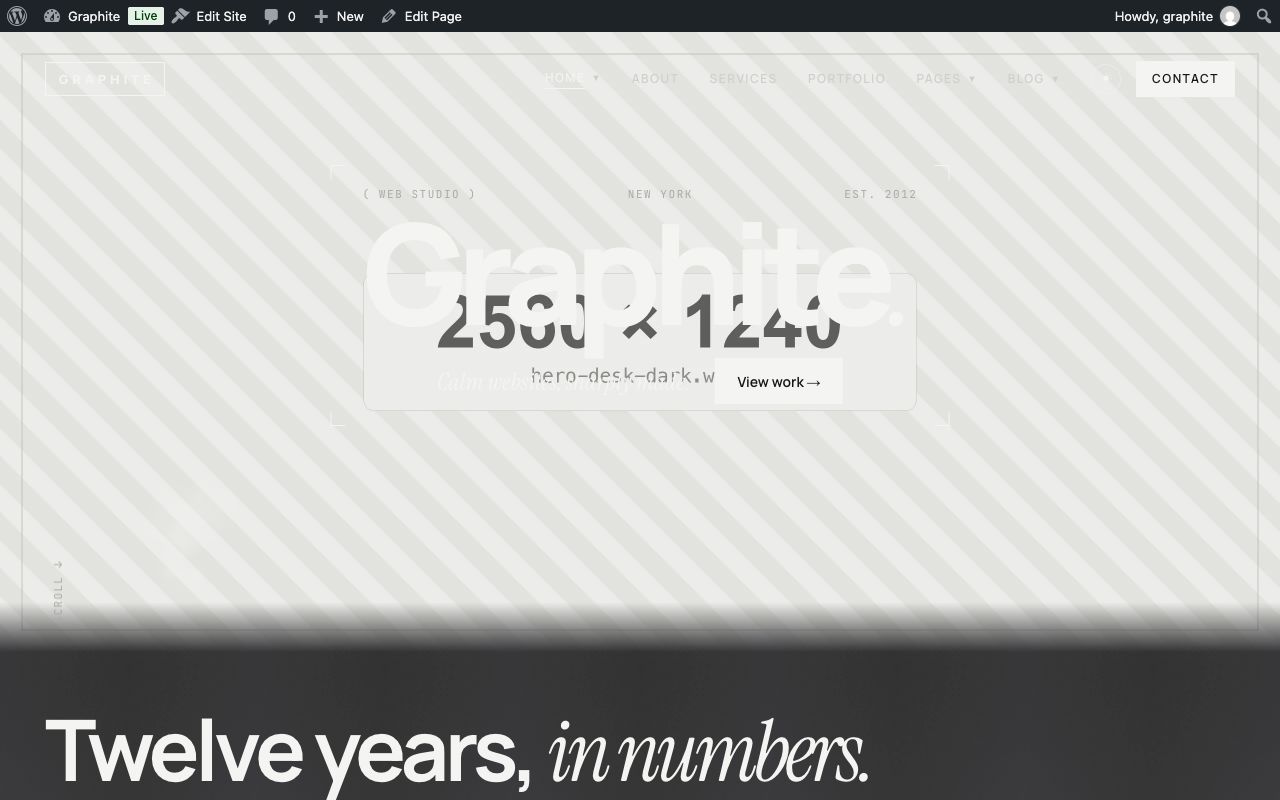
Open your site: it now looks like the demo, with striped placeholders in place of the photographs. Continue with After installation.
Installing with FTP
If uploads are refused on your host: unzip Theme/graphite.zip and upload the folder graphite to wp-content/themes/ with your FTP program, then activate the theme under Appearance → Themes and continue with step 4.
WordPress’s own guides show these steps in other words: Work with themes and Manage plugins.
Demo content
Appearance → Graphite demo → Import the demo. It creates:
- the pages of the demo from the theme’s page patterns: Home, Home 2, Home 3, About, Services, Portfolio, Pricing, FAQ, Testimonials, Shop, Contact, Coming soon and Blog;
- the menus “Main menu”, “Footer menu” and “Footer pages”;
- twelve blog notes with three writers (users with the Author role and a random password nobody knows), their pictures, categories, tags and four comments;
- the reading settings: Home as the front page, Blog as the posts page, four notes a page;
- with WooCommerce active: the demo shop — product categories, eight products (Graphite Kit sold in two licences as variations of the attribute “Licence”, a free product, a print with stock) and three bundles, all found again by their SKU; on a store with no products yet the designed Shop page takes WooCommerce’s empty Shop page and WooCommerce’s product list moves to a new page “All products” (a store that already sells keeps its Shop page).
Above the button the screen offers the settings the demo needs, each ticked and each yours to untick; only the ones your site still needs are shown, and the report says what was done:
- Readable addresses — Settings → Permalinks → “Post name”, offered only while the site uses “Plain” (a structure you chose is never replaced);
- Open the store — WooCommerce → Settings → Site visibility → Live, offered only while the store is in “Coming soon”;
- Check payments — WooCommerce’s offline method, for test orders (no money is taken), offered only while no payment method is on. Add your real payment method later under WooCommerce → Settings → Payments.
Pages, menus, writers, products and Reading settings you already have are never touched. Tick “Put the demo back…” to restore what the demo made (its pages, menus, notes, writers’ profiles, products and the Reading settings); things the demo did not make are never changed. Importing twice creates nothing twice. Only files bundled with the theme and the plugin are used; nothing is downloaded.
After installation
- Settings → General: the site title, the tagline and the time zone (the header clock, the availability months, the Thursday countdown and the launch countdown use it).
- Settings → Permalinks: “Post name” (the demo screen sets it when the site still uses “Plain”).
- Settings → Discussion: comments and their moderation; the comment form says what happens to a first comment.
- Settings → Privacy: Graphite Core suggests a paragraph for your privacy page (what is stored and where).
Editing pages and blocks
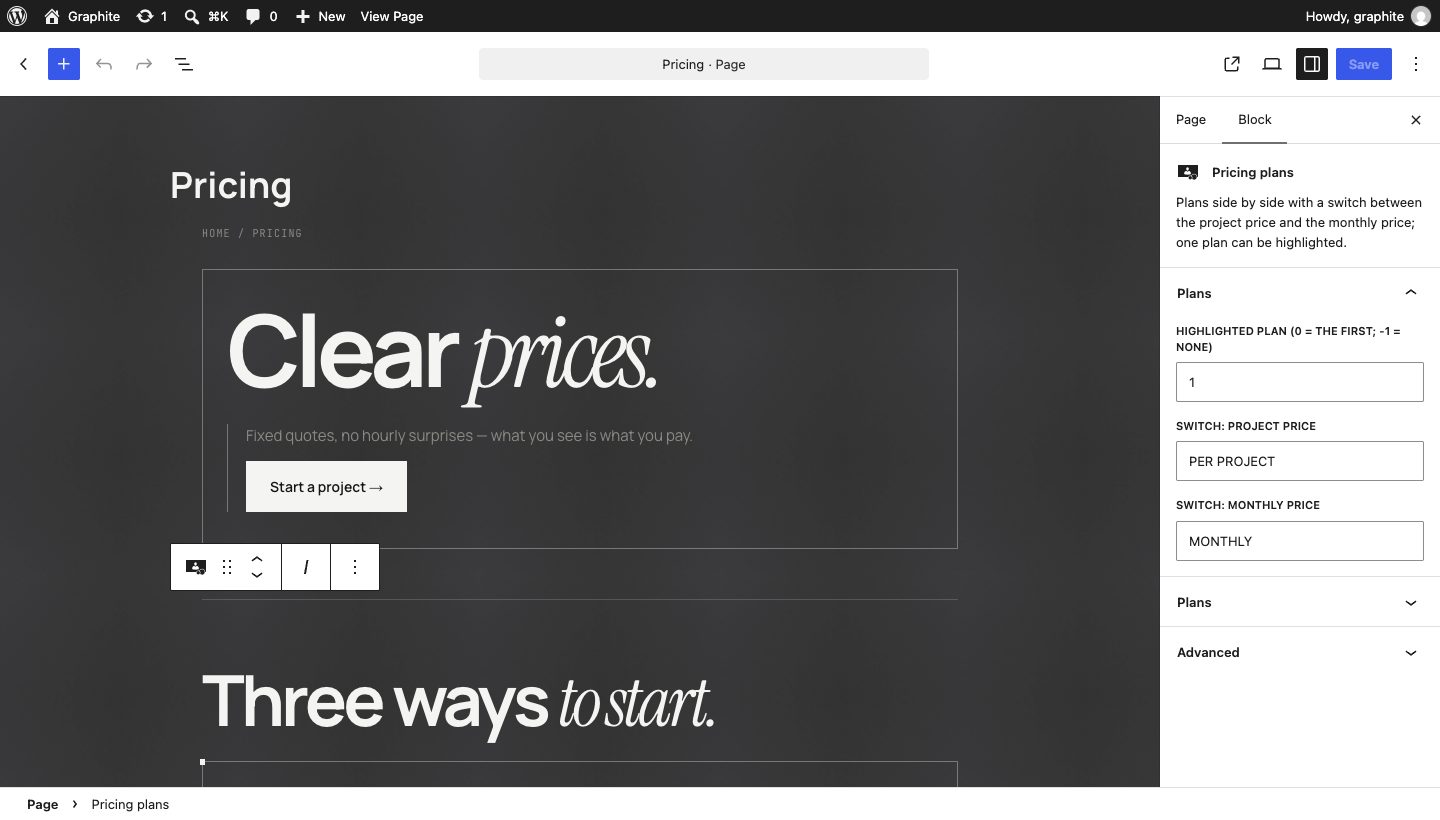
Every demo page is a normal page made of blocks. Open it in Pages, click a word and type. Each Graphite block shows its words on the canvas; its lists (services, plans, questions, products…), numbers, links and pictures are in the block’s sidebar (Settings → Block), with buttons to add, move and remove items.
New pages: Pages → Add New Page, then the Patterns tab of the inserter → Graphite pages gives every demo page as a starting point, and Graphite gives every section on its own. Choose the template “Graphite design” (Page → Template) for pages made of sections; the default template is for pages of plain text.
Colours, fonts and the light scheme
Appearance → Editor → Styles: the palette (Background, Text, the greys, Paper and Ink) and the three font families (Manrope, Instrument Serif, JetBrains Mono — all bundled, nothing is loaded from Google). The palette sets the dark scheme; the light scheme is its fixed counterpart in assets/css/design.css.
The demo pages
- Home, Home 2, Home 3 — the same sections under three headers (desk photo, blueprint, pencil drawing): numbers, services, work, process, promises, budget, reviews, availability and the newsletter.
- About — the letter, the studio right now, tools, the six rules, the board, press and open positions.
- Services — the crafts, budget, kit, project sizes, a case, questions and a one-sentence brief.
- Portfolio — featured work, the projects grid and list with filters, figures, clients and the next-project form.
- Pricing — plans, the comparison table, an invoice calculator, add-ons, payments, money questions and a quote form.
- FAQ, Testimonials, Contact, Shop — see their sections below.
Everything that looks like a live figure is either worked out (dates from today in your time zone) or set by you in the block: there are no invented counters.
Blog
The blog uses your posts. Settings → Reading: “Posts page” = Blog. The list shows four notes a page (Settings → Reading → “Blog pages show at most”). Each note shows its category, date, reading time (worked out from the text), writer, excerpt and tags. In the post editor the panel Graphite: title sets how many words at the end of the title are set in italics, as in the design.
The sidebar: search, categories, the notes readers found most useful (their votes on the “Useful” button; the newest notes while there are no votes), tags, the letter sign-up, the writers, the archive and the feeds. Writers get a role and a photo in Users → Profile → Graphite: writer; the photo is used on notes, in comments and in the sidebar instead of an avatar service picture.
Forms and the Inbox
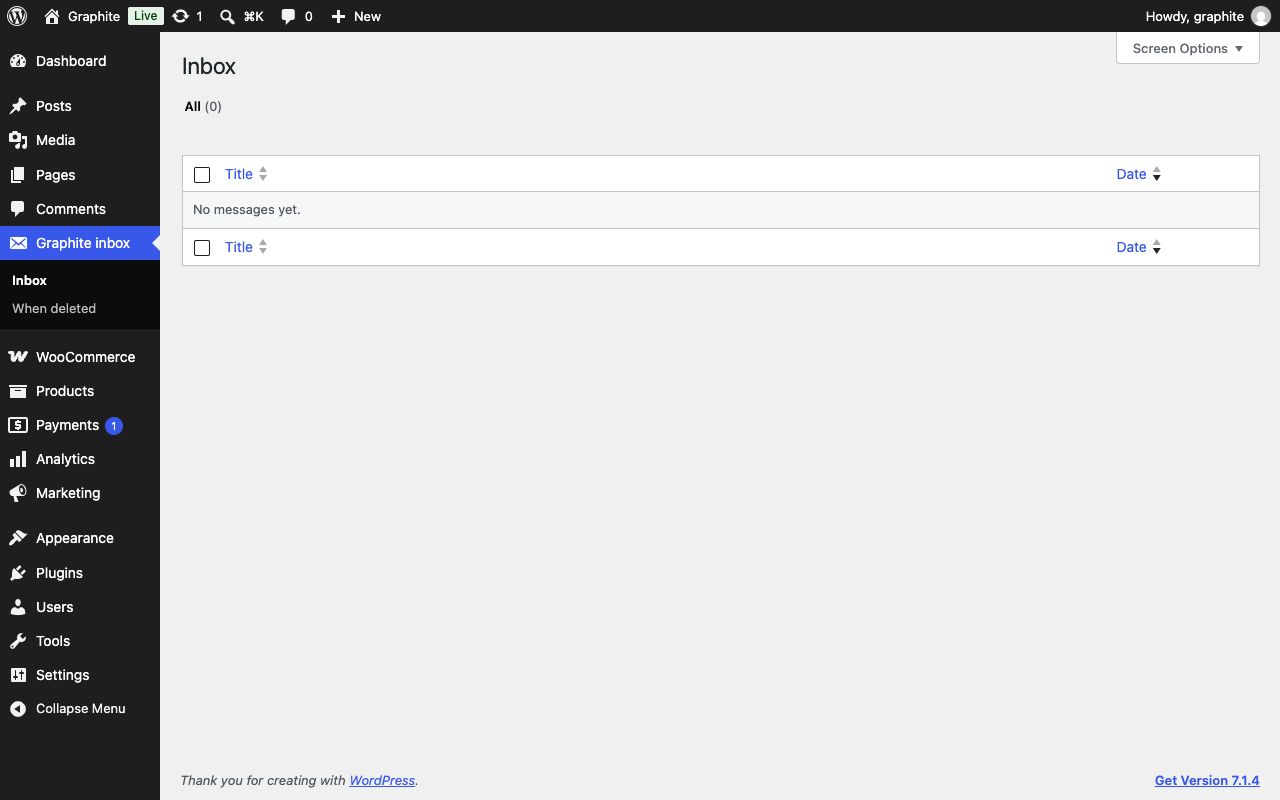
Everything visitors send — newsletter sign-ups, briefs, questions, review drafts, the postcard, the Thursday letter — arrives in Graphite inbox in the dashboard, as private messages only administrators can read. Nothing is e-mailed or sent to another service. Forms are protected by a security token, a hidden trap field for bots and a short rate limit. WordPress’s personal data tools (Tools → Export / Erase Personal Data) cover the inbox.
Caching plugins
You need no special cache settings for the forms. The security token is not stored in the page: a form asks the site for a fresh one just before it sends, through wp-admin/admin-ajax.php. So forms keep working on pages your caching plugin or CDN keeps for any length of time. Do not block or cache admin-ajax.php; caching plugins leave it alone by default.
Cloudflare, CDNs and proxies
A visitor may send 5 messages within 10 minutes, counted by their address together with their e-mail, and one address may send 60 in all, “useful” votes included. Behind a proxy or CDN the server can see the proxy’s address instead of the visitor’s if the host does not restore the real one. Visitors then share an address, but each still has their own 5 tries, and forms keep working unless more than 60 messages arrive through one proxy address within 10 minutes. To count real addresses, turn on your host’s real-IP option (Cloudflare calls it “Restore original visitor IPs”). A developer can also pass the real address through the filter graphite_core_visitor_ip.
Shop
The shop runs on WooCommerce: products, prices, stock, the cart, checkout, payments, taxes, shipping, order e-mails and the files a buyer downloads are WooCommerce’s, set up under WooCommerce → Settings and Products. Graphite shows them in its design:
- Shop catalogue — your WooCommerce products as the design’s cards: name, price, category (the chips), the first product tag (on the cover), the attributes “Format” and “Version” (the line under the name) and up to three more visible attributes (the sheet that slides up). “Popular” sorts by sales, “New” by date, ties keep the order of Products → Sorting. In the sidebar: which categories (slugs) and how many products.
- Featured product box and Licence documents — one product named by its SKU. To sell it in licences, make it a variable product with the attribute Licence (a variation per licence, e.g. Personal and Commercial); each licence of the block shows when a variation of that name can be bought, at its price. The name a buyer signs on a licence document travels with that licence into the cart and the order (“Licensee”).
- Bundles — each bundle is a product of its own (its SKU), holding other products (their SKUs, one per line); the struck-through prices and the saving come from those products. Attach the files of the bundle to the bundle product.
- Shop receipt — the floating pill opens WooCommerce’s cart as the design’s receipt: quantities change in the cart itself, and its button goes to WooCommerce’s checkout.
WooCommerce’s own pages — product, All products, categories, search, cart, checkout and order received — use the theme’s templates (Appearance → Editor → Templates) with the theme’s header and footer. Payment methods are WooCommerce’s (WooCommerce → Settings → Payments); for digital products tick Virtual and Downloadable and add the files.
404 and Coming soon
The 404 template shows the missing-sheet hero and the page finder: index cards of your main pages, found by a letter or a word. Edit the cards in the block Find a page (Appearance → Editor → Patterns → Page not found). The Coming soon page counts down to the launch day and time set in the block Launch countdown (or a number of days after the page was published); time zones are “LABEL|Area/City” lines, the calendar button saves an .ics file made in the browser.
Graphite blocks
| Block | What it does |
|---|---|
| Add-ons | Fixed-price extras to tick, with a running total. |
| Ask a human | Name, e-mail and a question; it reaches the Graphite inbox. |
| Before and after | A redesign case as a before / after divider over two screenshots (desktop and phone), with pins and figures that change with the divider. |
| Budget slider | A budget slider that ticks off what is included from each amount and estimates the weeks of work. |
| Bundles | WooCommerce bundle products with the saving worked out from the products they hold. |
| Client letters | Letters from clients as a stack of paper: click the stack or a sender to bring a letter to the top. |
| Client wall | Client names as a wall of marks; pointing at one names the project. |
| Contact channels | Ways to reach the studio as cells: each value is a link (e-mail, phone, chat, booking), with a note and the usual wait. |
| Craft shutters | Services as tall shutters that open in turn (five seconds each) with what is included, the timeline, the price and a photo. |
| Deliverables kit | What a client keeps after the project, as a numbered kit of items. |
| Draft your review | A review card to fill (quote, stars, name, company) with a progress bar; when complete it can be sent to the inbox as a brief. |
| Exact quote request | A sentence with four blanks that gives a price range; the e-mail field sends the request to the inbox. |
| Featured product box | One WooCommerce product in a box that turns, with its contents and a choice of licence. |
| Featured projects | Featured projects as a big photo with a case card; arrows step through them. |
| Featured quotes | Big client quotes with the person's photo set into the sentence, the result beside the name; arrows step through them. |
| Figure row | A row of big figures, each with a label and a line of text. |
| Find a page | Pages as index cards with an A–Z lookup, for the 404 page. |
| Find the studio | A map (OpenStreetMap, loaded from your link), the address, transit and opening hours with today marked. |
| Founder's letter | A letter on paper with pencil notes and a photo, beside a re-read log: pointing at a year shows that year's note. |
| Invoice calculator | Visitors tick services and quantities and watch a quote fill in: currency, bundle discount, tax, total, weeks and a payment schedule from today. |
| Job tickets | Open positions as tickets: open one to read its checklist, apply through a link. |
| Launch countdown | A countdown to a launch date and time, in several time zones, with a calendar file. |
| Licence documents | A product’s licences as documents to pick and sign (the name goes with the order), and a deck of questions. |
| Missing sheet (404) | The 404 hero: big digits under an ink lamp, a line of text and the way home. |
| Money questions | Questions about money as a wall; the answer types itself with a counting figure, filtered by topic, and shows which plans it applies to. |
| Most useful notes | The notes readers found most useful (their votes), with a thumbnail. |
| Newsletter sign-up | An e-mail field with a button; sign-ups go to the Graphite inbox in the dashboard. |
| One-sentence brief | A sentence with four blanks to fill from choices, a ticket that suggests a package, and an e-mail field that sends the brief to the inbox. |
| Package by size | A slider for the company size picks the package that fits and says why. |
| Page header (drafting table) | The page title on a drafting table: breadcrumbs, rulers, a crosshair that measures and snaps to the corners, the intro and a button. |
| Payment schedules | Payment schedules as a bar of milestones with a switch between schedules, and notes beside it. |
| Plan comparison | A comparison table of the plans: feature rows in groups, one plan column highlighted. |
| Postcard brief | A brief written on a postcard: name, company, three choices, a P.S. and the e-mail; the stamp shows the plan for the budget; sent to the Graphite inbox. |
| Press marquees | Two slow marquees: press logos and quotes; they slow down under the pointer. |
| Pricing plans | Plans side by side with a switch between the project price and the monthly price; one plan can be highlighted. |
| Process loop | The process as a drawn loop of steps: a pulse travels the path, lights the step it passes and writes an event log. |
| Process timeline | Project phases on a twelve-week chart with a playhead (dragged or moved with the arrow keys) that names the phase and the team on duty. |
| Projects mosaic and archive | All projects as a photo mosaic (cells of chosen width and height) or as an archive table, with category filters shared by both views. |
| Promises and contract | Promise cards beside a contract page; pointing at a card highlights the clause that backs it. |
| Questions by topic | Questions grouped by topic with a search field (press /), topic tabs that count matches, and answers that open one at a time; adds FAQ structured data. |
| Quick answers | Four short answers as big figures with a unit and a caption. |
| Ratings | An overall rating tile and one card per source; pointing at a card shows its rating, count and a quote. |
| Review wall | Client reviews in slowly moving columns beside a rating card; pointing at a review shows its client and result, filters by kind of project. |
| Review wall | Reviews in columns with service tabs that filter them. |
| Rules under a lens | Six rules on a grid that bulges under a fisheye lens following the pointer. |
| Services accordion | Services as vertical strips that open one after another (paused while the pointer or focus is on them): name, tags, text, a checklist, a photo and a link. |
| Services card stack | Service cards that stack on each other while the page scrolls, with a counter of the card on top. |
| Share the note | Share links for the note: LinkedIn, X, e-mail and copy link (nothing loads until clicked). |
| Shop catalogue | WooCommerce products with category chips, sorting, grid density and a mini cart. |
| Shop perks | Four numbered reasons in a row. |
| Shop receipt | WooCommerce’s cart as a printed receipt, with the way to checkout. |
| Sidebar letter sign-up | The monthly letter sign-up for the blog sidebar; addresses reach the Graphite inbox. |
| Start a project | A big closing line with an e-mail field; the address goes to the inbox as a project request. |
| Start availability | The coming months from today with the project places booked in each (set by you); visitors pick a month to reserve. |
| Studio board | A kanban board of the week whose cards move between columns on their own, with a cursor and a line saying who moved what. |
| Studio numbers | Up to six figures that roll in like an odometer, each with a label, a tag and a progress bar. |
| Studio right now | The studio's local time on a ring clock with open or closed hours, four figure tiles you set, and a short log of the day. |
| Studio right now (line) | The studio's local time and date, open or closed by your hours, and the usual reply time. |
| Team by their tools | Team members as cubes: the front shows a person's favourite tool, pointing (or tapping) turns it to their portrait; filters by craft. |
| Thursday letter | A newsletter sign-up with a countdown to the next issue, topic choices and a stack of past issues to browse; sign-ups go to the Graphite inbox with the topics chosen (none chosen: every letter). Signing up again with the same address replaces the earlier choice. |
| Under the tracing paper | Upcoming projects to pick, read through a loupe. |
| Useful vote | A button readers press when the note helped; votes are counted on this site. |
| Wall of questions | Questions set as one big paragraph; the answer types itself under it, readers take over by pointing or tabbing. |
| Who will answer | People to write to, with a photo, role and e-mail. |
| Work blueprint grid | Projects on a lettered blueprint grid with a crosshair that follows the pointer and category filters. |
| Work drum | Projects on a slowly turning 3D drum: drag, throw or click a card to bring it to the front. |
| Writers | The people who write the notes, with photo, role and number of notes. |
Images and sizes
Each placeholder shows the size the design uses. Pictures inside Graphite blocks are chosen in the block’s sidebar (Choose picture / Replace picture) with an alternative text field. Blog pictures are the posts’ featured images (1658×820 or larger, landscape). Writers’ photos are square (288×288 or larger).
Translation
The theme (graphite) and the plugin (graphite-core) are translation ready; their templates are languages/graphite.pot and languages/graphite-core.pot. Translate them with Loco Translate or Poedit and keep the files in wp-content/languages/themes and wp-content/languages/plugins, so updates do not remove them.
Deleting the plugin and your data
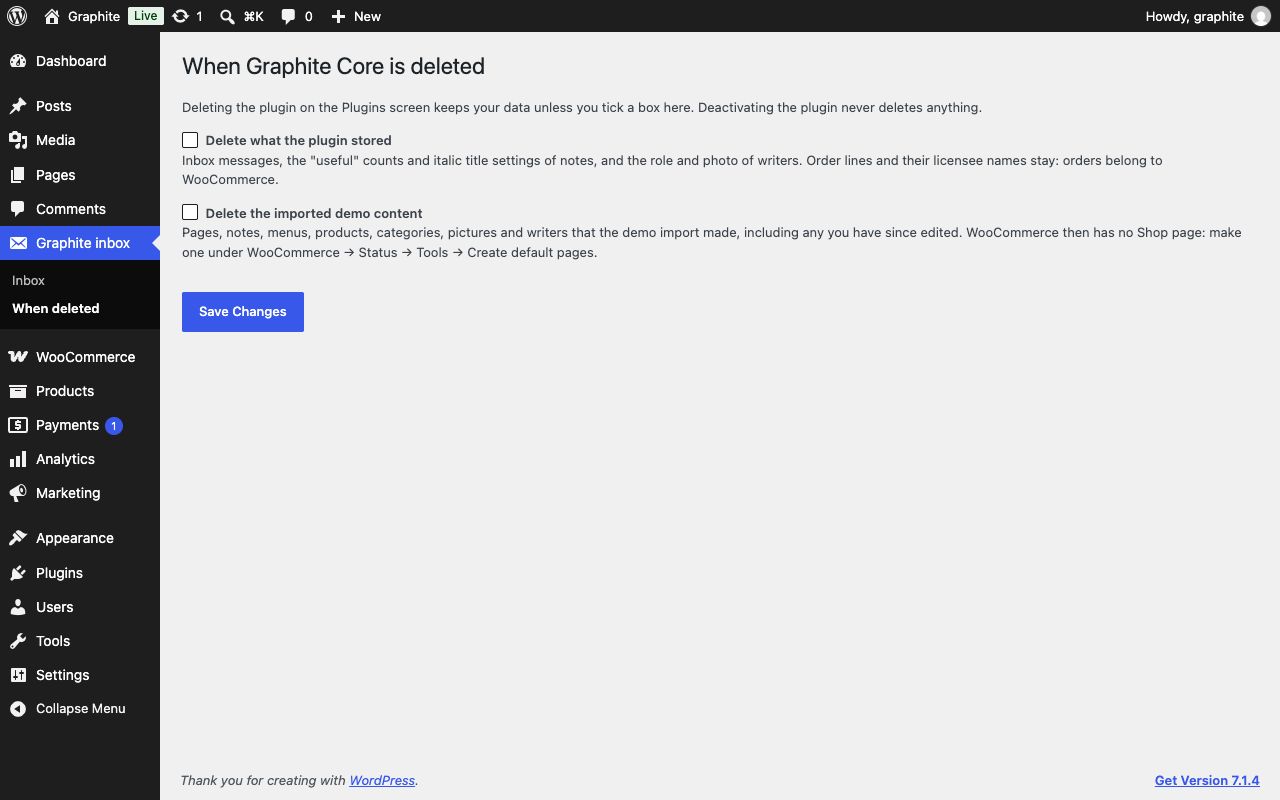
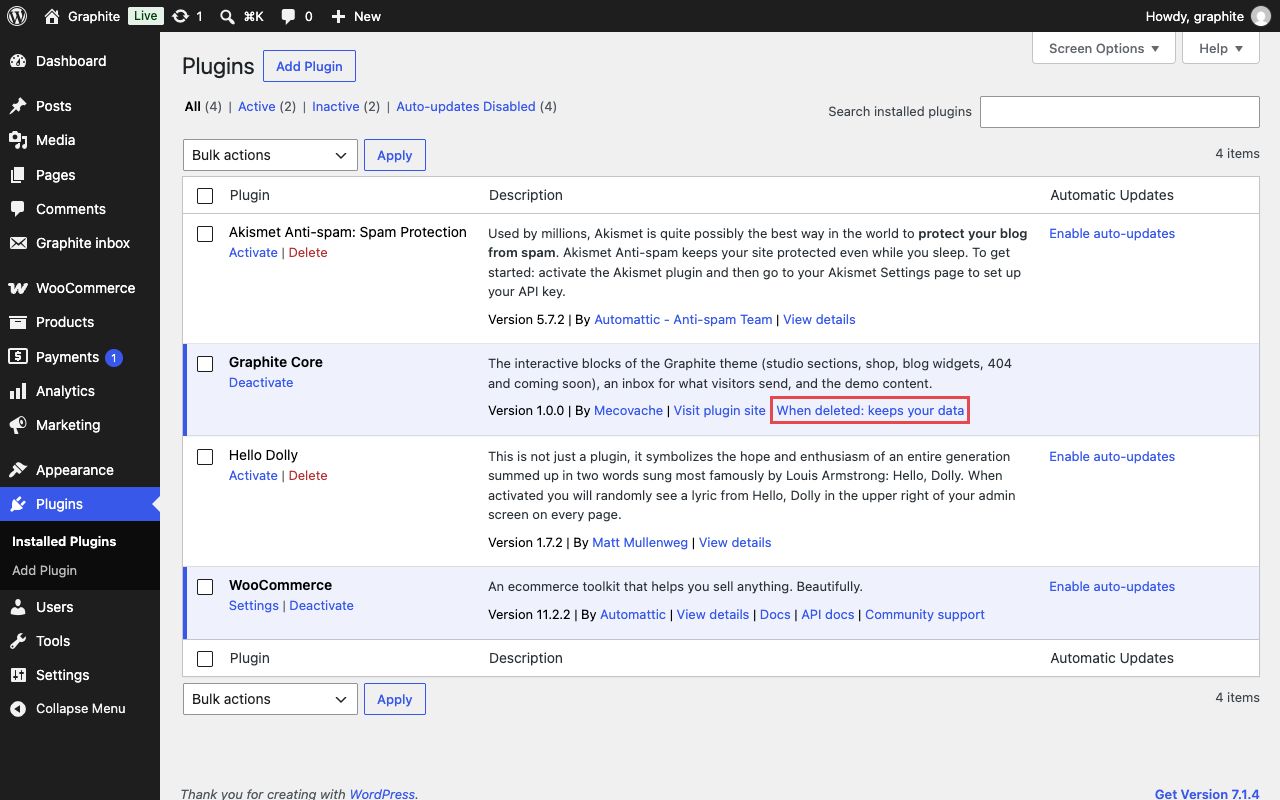
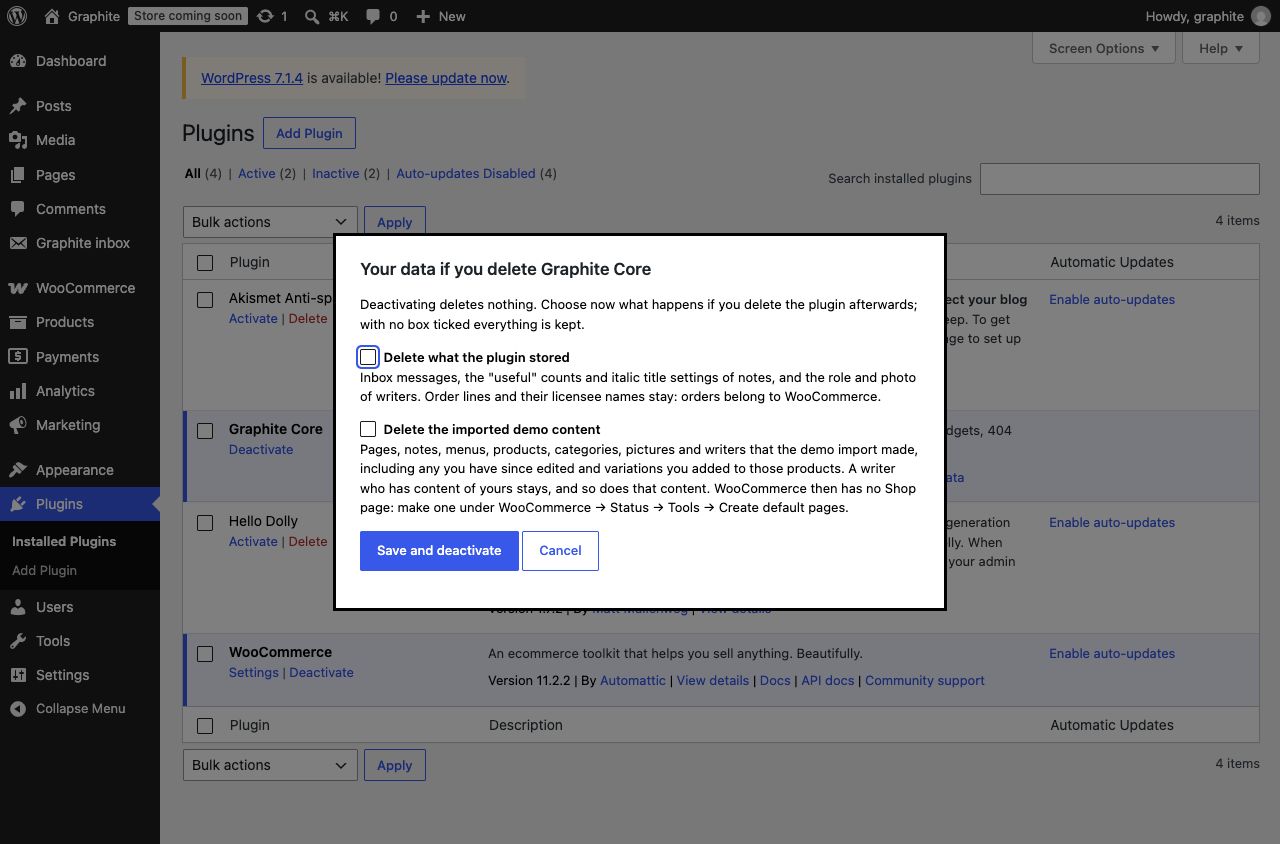
Deactivating Graphite Core never removes anything. Deleting it keeps your data too, unless you choose otherwise. WordPress offers Delete only after Deactivate, so pressing Deactivate on the Plugins screen asks you first. You can also choose at any time under Graphite inbox → When deleted:
- Delete what the plugin stored — Inbox messages, the “useful” counts and italic title settings of notes, and the role and photo of writers. On a multisite network each site chooses for itself; the role and photo are shared by the network, so they go only when every site ticks this box. Network Deactivate lists what the sites chose and offers to keep everything on every site; left alone, each site’s choice stands.
- Delete the imported demo content — the pages, notes, menus, products, categories, pictures and writers the demo import made, including any you have since edited and variations you added to those products. A writer who has content or links of yours stays, and so do they. WooCommerce then has no Shop page: make one under WooCommerce → Status → Tools → Create default pages.
The Plugins screen shows your choice next to the plugin. WooCommerce’s orders stay in every case, with the licensee names on their lines.
Updating
Download the new version from ThemeForest, then Appearance → Themes → Add Theme → Upload Theme with the new graphite.zip and choose “Replace current with uploaded”; do the same for graphite-core.zip under Plugins. Your pages, menus, posts and settings are kept. Changes made in the Site Editor are kept too.
For developers
- Design CSS:
assets/css/design.css(the design),assets/css/blocks.css(how core blocks wear it). Add your own CSS in Appearance → Editor → Styles → Additional CSS or in a child theme. - Patterns:
patterns/*.php; templates and parts:templates/,parts/. - Blocks:
graphite-core/blocks/<name>/withblock.json,render.php,edit.jsandview.js; no build step. - Filter
graphite_core_currency_symbol— the currency sign of the studio’s prices (plans, quotes, invoices; WooCommerce’s sign by default). Filtergraphite_core_licence_attributes— more names of the attribute whose variations are licences. - Filter
graphite_core_visitor_ip— the address the forms’ rate limit counts by (behind a proxy you trust). - REST routes (namespace
graphite-core/v1): newsletter, brief, useful — each checks a nonce, which the forms fetch just before sending (assets/js/forms.js). The shop uses WooCommerce’s Store API.
Privacy and external services
- No cookies are set by the theme or the plugin (WooCommerce sets its own for the cart and checkout). The scripts keep choices in the visitor’s browser only:
graphite-theme(scheme),graphite-lic(licence chosen in the shop),graphite-cart-stamp(when the cart last changed, so other open tabs show it),graphite-useful(notes marked useful),graphite-map(the visitor asked for the live map; the map’s “Hide the map and forget my choice” button unloads it and removes the key). - The map of the Contact page loads from OpenStreetMap only after the visitor presses “Show the live map”.
- The share links of blog notes open LinkedIn or X only when clicked.
- Fonts and images are served from your site. Nothing else is loaded from other services.
FAQ
Links give “Page not found”. Settings → Permalinks → Save once.
The blocks show “This block is not supported”. Graphite Core is not active: Plugins → activate it.
A form says “No connection” or “This form has expired”. Forms fetch a fresh security token from wp-admin/admin-ajax.php just before they send, so you do not need to exclude pages from your page cache. Check that a security plugin, firewall or CDN rule does not block or cache admin-ajax.php, then try again.
The header clock shows the wrong time. Settings → General → Timezone: choose a city.
Can I use the blocks with another theme? Yes, they bring their own styles; the header, footer and fonts of the design come from the Graphite theme.
Can visitors pay in the shop? Yes, through WooCommerce’s checkout with the payment methods you enable in WooCommerce → Settings → Payments.
Credits and licences
- Theme and plugin: GNU GPL v2 or later.
- Manrope, Instrument Serif, JetBrains Mono — SIL Open Font License 1.1, bundled.
- TGM Plugin Activation 2.6.1 — GPL v2 or later.
- Map data © OpenStreetMap contributors (ODbL), shown only on request.
- Demo pictures: created by the author with Midjourney and ChatGPT on paid subscriptions that grant commercial use; no real persons are depicted. In the download they are placeholders, except the pencil drawing of the home header.
Changelog and support
Version 1.0.0 — initial release.
Questions? Write to us through the Mecovache profile page on ThemeForest. Please include your WordPress and PHP versions and a link to the page.